All ODStatistics worksheets have a
Data area. This area is where data have to be
entered. You can enter data directly cell by cell in this area, if you
want, but it is much better to organize the data in a separate
spreadsheet and afterwards paste them to the approppriate ODStatistics
workwheet.
Data organization
Data have to organiezed in the "standard" way, that is with
variables in columns and each case or observation in a separate
row. The first row should contain the names of the variables being
used. ODStatistics worksheets have a limit of 200 cases.
Options to enter data
You can use the edition options of your operating system (Windows, Mac
or Linux) and OpenOffice edition options to copy the data from your
own spreadsheet into the Data area of ODStatistics
worksheets.
Let's work out an example. Follow the next steps:
- Create a OpenOffice Calc spreadsheet with a variable called
Euros and enter 10 cases with the following values:
10, 15, 20, 22, 23, 27,
29, 30, 36, 40. Your spreadsheet should look as follows:

- Choose the column that you have created and copy it to the
OpenOffice Calc clipboard. This is done by highlighting with the
mouse the column (do not click on the column letter to highlight the
whole column because it would not work):

Now you have to open the "Edit" menu and choose "Copy" (you can
also do it by pressing the Contol (Ctrl) or equivalent key and then C):

The data is now available at the OpenOffice Calc clipboard so that it
can be imported to another Calc spreadsheet or any other software.
- We will now open the "odstats" spreadsheet (if yo do not
remember how, return to "Index") and choose "1NUM" (worksheets
to analys one numerical variable):
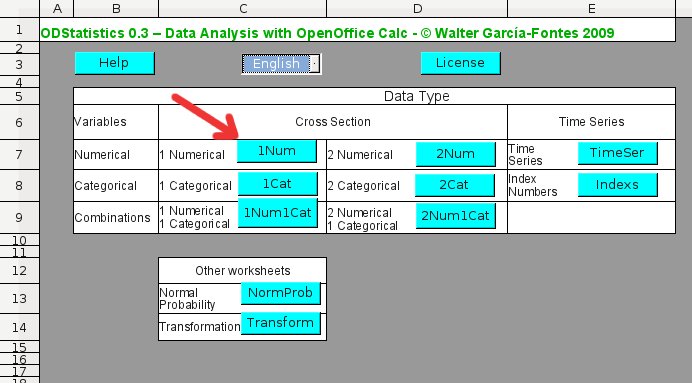
Double-clicking over 1NUM the analysis worksheet for datasets with one
numerical variable will be opened, and we will see the initial screen
of these worksheets:

All the ODStatistics worksheets have a common structure: a first
worksheet called "Help", a second worksheet called "Data Entry"
and another one called "Summaries". Sometimes there are some other
worksheets ("Extra tools", and so on).
The first worksheet, "Help", provides basic information on how
"1NUM" works. As it name suggests, to enter the data the "Data
Entry" worksheet is used, and also some basic descritions can be
found there. The third worksheet, "Summaries", provides the most
common numerical and graphical summaries for the corresponding dataset
(1 numerical variable, 1 categorical variable, different combinations
or other types of data).
The different worksheets can be found at the bottom of the spreadsheet:

To enter the data we have to go to the "Data Entry" worksheet. A
spreadsheet, like 1NUM, may have different worksheets. The names of
the different worksheets of a spreadsheet can be found at the bottom
of each screen of the spreadsheet. Clicking over these names we can go
to the different worksheets. Now you have to click over "Data Entry"
to go to this worksheet:

We will see already some data and its corresponding numerical and
graphical summaries when we open ODStatistics worksheets. These data
are obviously not your data and to obtain the summaries corresponding
to your data you have to enter them into the corresponding
area. Another commment before entering our data is that
double-clicking over any label that we see in red, we
will obtain help on the features of the corresponding section. For
instance if we double-click over "Numerical summaries", the label
seen at the table in the upper part of the "Data Entry" worksheet,
we will get the following dialog:
- At the A1 cell we can find Data also in
red, and therefore we know that we will get a dialog, but this one
is a bit special. If we do not have anything at the clipboard we
will get a help dialog on hoow to enter data into 1NUM, but if we do
have data in the clipboard we will get a dialog asking us if we want
to enter them into 1NUM (we could also have some other data from a
wordprocessing application in the clipboard so we have to make sure
that what we have is the data that we really want to analyze). If we
stil have in the clipboard the data from our example that we created
previously we can continue, otherwise we have to copy them again
into the clipboard.
Double-click then over the A1 cell, where it says
Data. You will get the following dialog:

If you did not get this dialog you should copy again the data into the
OpenOffice clipboard. Click over "OK" and your data will be pasted
into the "Data Entry" worksheet:

You have already your data in the "1NUM" worksheet. Now you can
start your data analysis.
File translated from
TEX
by
TTH,
version 3.78.
On 27 Sep 2009, 18:12.